· Alexander · Caddy · 14 min read
Alex's Guide to Caddy [Part 1]
Deploying Caddy with Cloudflare Tunnel, in Docker, to serve your local services. [Part 1]
![Deploying Caddy with Cloudflare Tunnel, in Docker, to serve your local services. [Part 1]](/_astro/caddy_banner.CIyOVYfK.webp)
Introduction
Ever wondered how to expose your home network services securely? It’s the classic tech puzzler. You could use a VPN1 to tunnel into your network, but that requires you to have the connection enabled and running. You could also use an SSH Tunnel2 or a bastion server3. Though, this requires your remote device to have the ability to SSH. Now there is another way: Reverse Proxy4! A reverse proxy sits in front of your backend services and forwards incoming web requests to them. This can also help increase security, since you are not exposing the service directly. Now the downside is that you still have to forward ports 80/443 (HTTP/HTTPS) through your firewall. However, this can potentially leave your network vulnerable to port attacks. This can be mitigated with Cloudflare Tunnel.
Cloudflare Tunnel acts as an encrypted tunnel between your server and the nearest Cloudflare data center. It requires no ports to be forwarded through the firewall. This guide series will focus on utilizing Cloudflare Tunnel with Caddy to serve / secure services hosted in Docker. It will be broken into 3 parts, so it’s not too long and easier to read through. I will be walking you through the bare minimum with a few extra security options. I recommend you do your own research as well since things change all the time.
Sorry for the wall of text but doing something like this requires a lot of information, and I’m hoping to make it easy to follow for people that are just starting out and want to learn.
Before You Begin
In order to host your own web server, with SSL, you need to have a domain registered with a registrar5. You will also need a host to run everything on. Preferably a host that can be easily secured, aka not your personal desktop! For this post I will be using a machine running Ubuntu Server and Docker. I will be walking you through the entire process (broken into 3 parts as stated above). The only things you will need to begin are a form of payment (for the registrar) and a fresh host with Ubuntu Server installed. You can use any OS but keep in mind that this guide is built around using Ubuntu Server. Some commands will be different if you are not on a Debian based OS.
Guide Parts Reference
- Registering a domain on Cloudflare, setting up the host, and deploying Caddy with Cloudflare Tunnel. 📍
- Securing resources behind Caddy with Authelia.
- Using an internal only domain with Caddy that has SSL.
Listed on the Guides’ page as well.
Registering a Domain with Cloudflare
The first few things we need to tackle are getting a domain registered and our host setup with Docker. After that we can start setting up services, Caddy, and Cloudflare Tunnels. We are going to start off with registering the domain. Now, I highly recommend using Cloudflare for this as it will make it extremely easy to set up the tunnel later.
In order to register a new domain with Cloudflare. You first need to create an account. Head over to their site, here, and follow the account creation process for a free account.
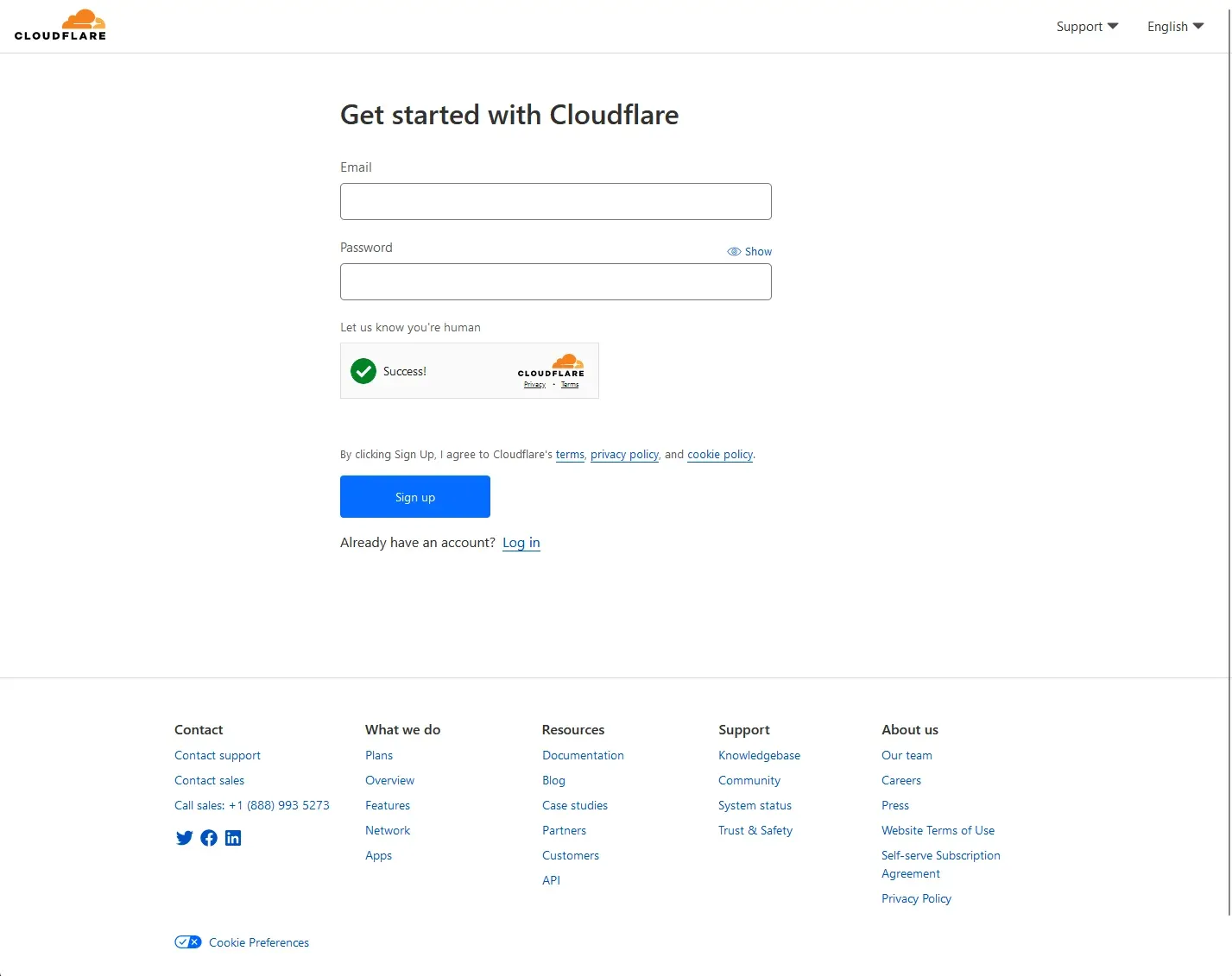 Cloudflare Sign up Page
Once you are set up with an account, sign in and head to the billing > payment info section of your profile. Fill in your payment method and a billing address.
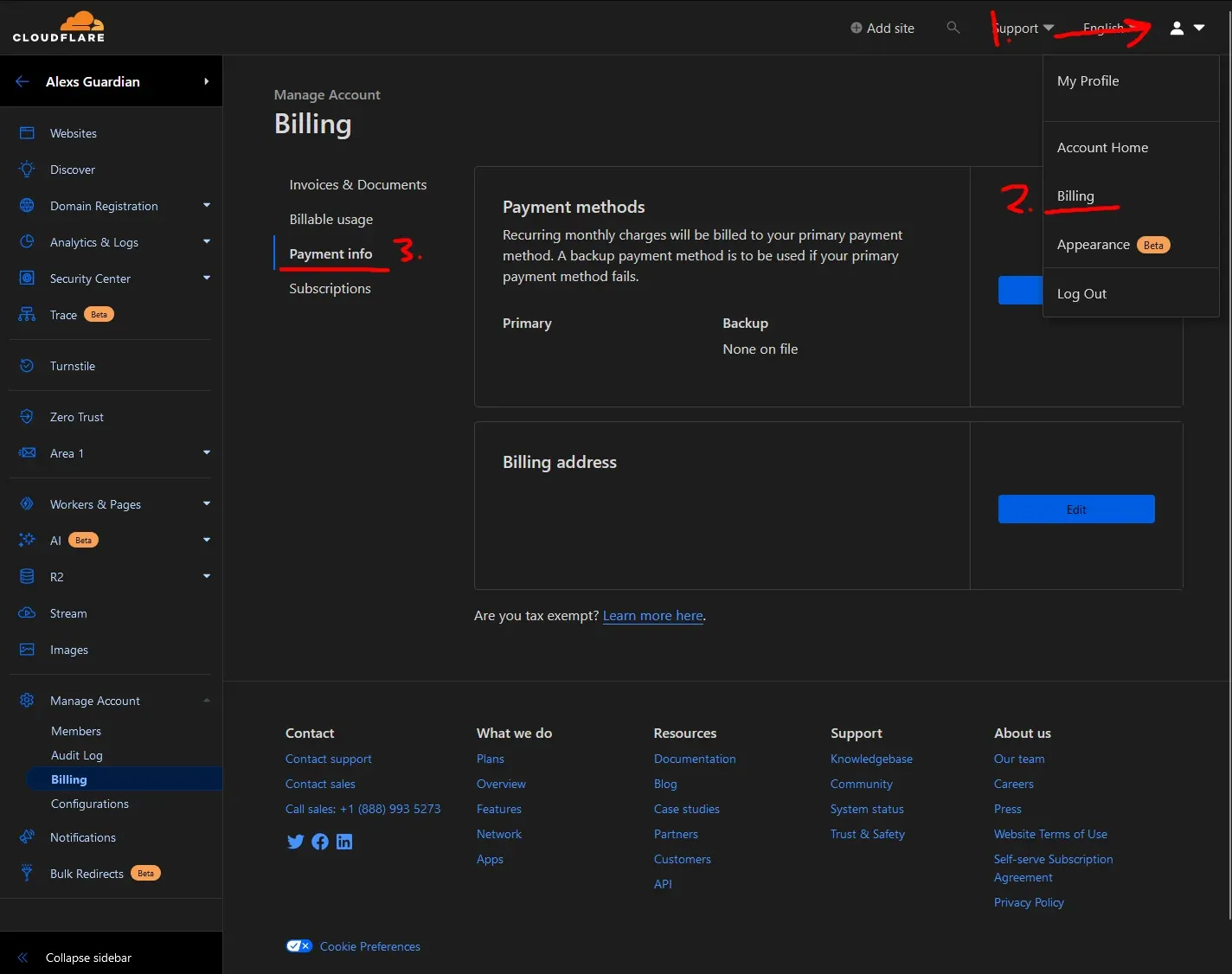 Cloudflare Billing Info
Then head back to the dashboard and enter the domain registration page.
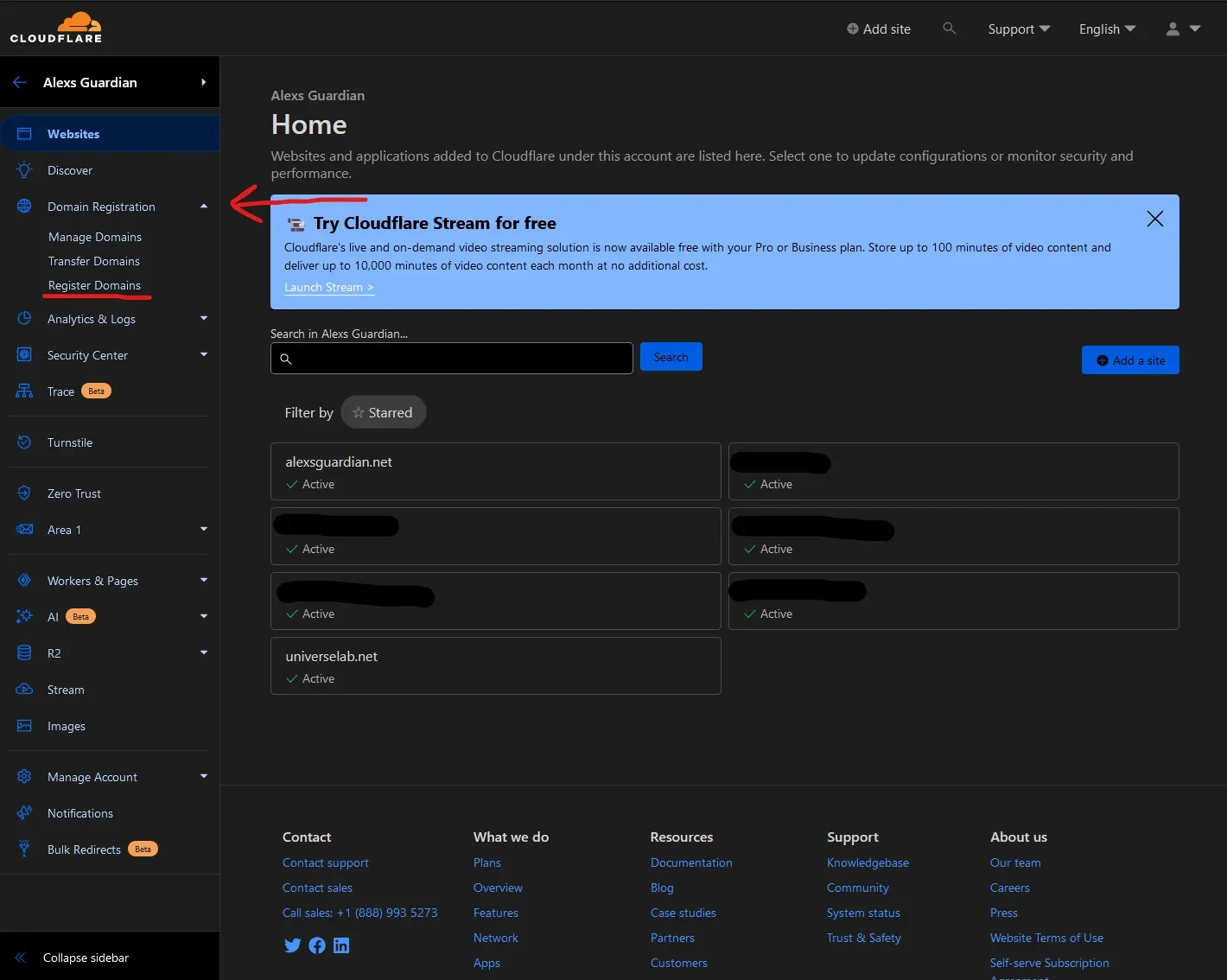 Cloudflare Domain Registering Menu
On the Register Domain page, search for a domain you’d like to use. When you find one, click on the “Purchase” link and check out. Follow the checkout process.
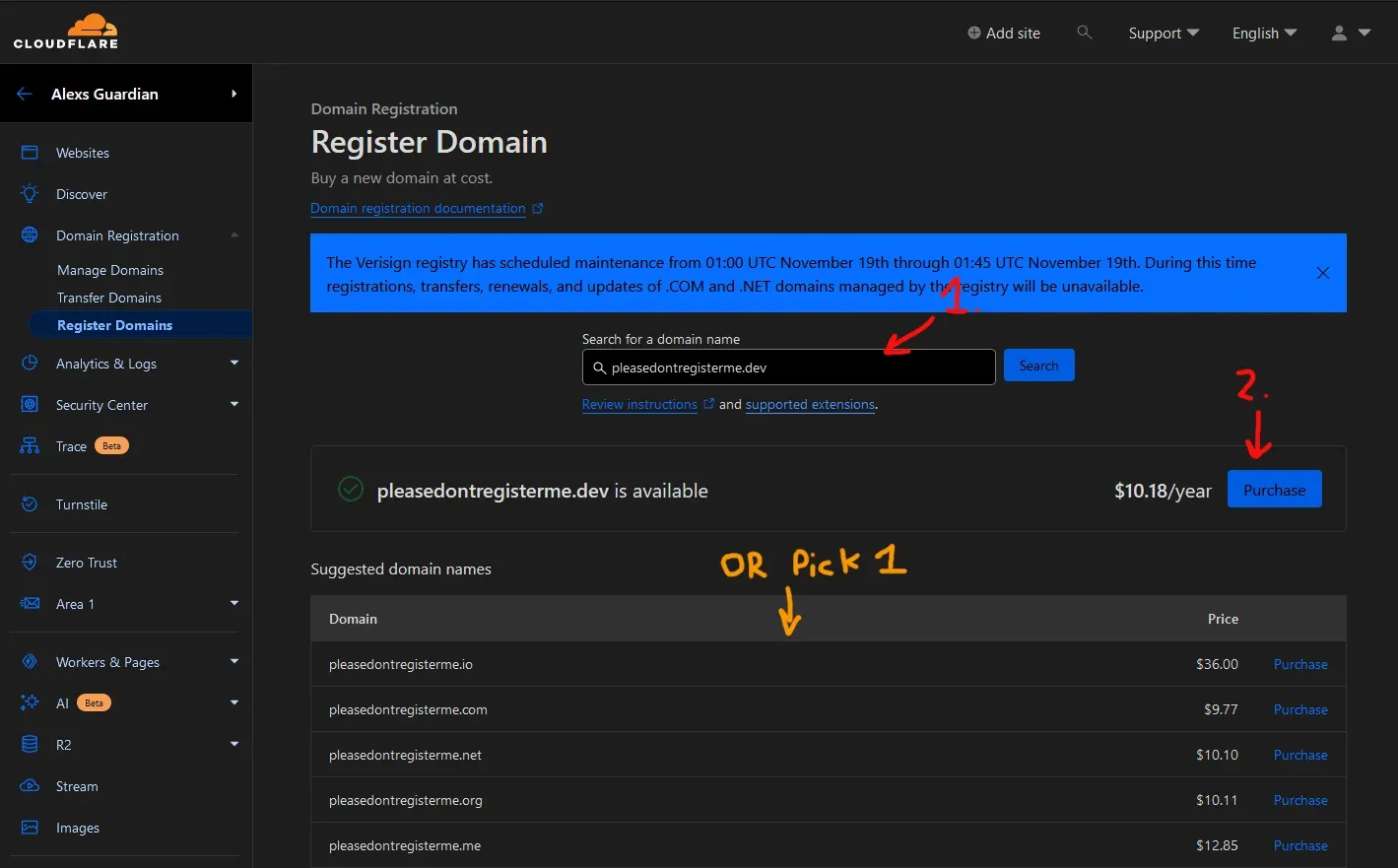 Cloudflare Domain Registering
Once you have registered your domain you should see it on the dashboard with a green checkmark and “Active” listed under it.
 An active domain in Cloudflare
Now that we have our domain registered, let’s get the host prepared!
Preparing the Host
Like I stated earlier, we will be using Docker to run all our services. Docker makes it easy to spin up services in containers which can include all the dependencies. This makes it extremely easy to also blow away a service if you want to start fresh or don’t need it anymore. It also adds a layer of separation from the host which can enhance host security a bit.
SSH into your host and install Docker.
ssh youruser@host
# Install Docker Dependenciessudo apt install ca-certificates curl gnupgsudo install -m 0755 -d /etc/apt/keyringscurl -fsSL https://download.docker.com/linux/ubuntu/gpg | sudo gpg --dearmor -o /etc/apt/keyrings/docker.gpgsudo chmod a+r /etc/apt/keyrings/docker.gpg
# Add the Docker repository to apt sourcesecho \  "deb [arch="$(dpkg --print-architecture)" signed-by=/etc/apt/keyrings/docker.gpg] https://download.docker.com/linux/ubuntu \  "$(. /etc/os-release && echo "$VERSION_CODENAME")" stable" | \  sudo tee /etc/apt/sources.list.d/docker.list > /dev/null
Now update the apt sources and install Docker-CE
sudo apt update
# Install Dockersudo apt-get install docker-ce docker-ce-cli containerd.io docker-buildx-plugin docker-compose-plugin Installing Docker
Now, I like to create a dedicated user to run containers in my lab. This is not a recommended method and is optional since it can be dangerous, unless you run Docker root-less as noted in the docs. This guide will not be covering how to do a root-less docker user, but it is definitely the recommended route. It does come with some limitations as noted here though. For the time being we are going to add our current user to the docker group, so we can omit sudo in every command from here on out.
sudo groupadd dockersudo usermod -aG docker $USER Adding the current user to the Docker group
Logout and log back into the host for the changes to take effect or run newgrp docker. You can then run docker to view the command help, to see if everything is working correctly.
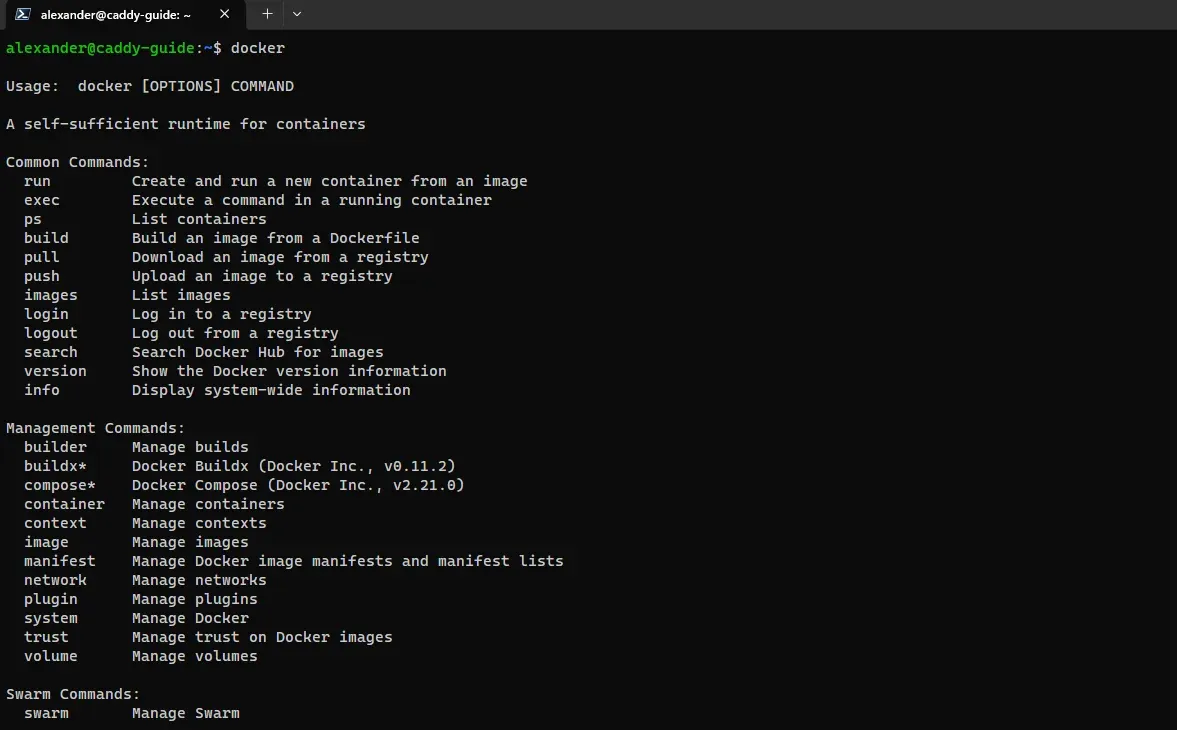 Help output from running
 docker with no parameters
Next we need to create the network that we will use for communications between Cloudflare tunnel and Caddy.
docker network create cf-internal-netPreparing for Caddy
For this I will be using my custom Docker image which includes the Cloudflare DNS module7. We need this module as Caddy will not be able to do proper certificate generation, since it will not be directly exposed to the internet and will have to use the DNS challenge8 to obtain them. You can easily build your own image and if you want to learn how to do that via GitHub Actions automatically you can check out my guide series, here, and the build repo for my image here.
Create the config directories and files for Caddy.
mkdir ~/caddy ~/caddy/.data ~/caddy/configs ~/cloudflaretouch ~/caddy/Caddyfile ~/caddy/configs/cloudflare-tls ~/caddy/configs/cloudflare-clientip-map ~/caddy/cf.sh ~/caddy/reload.sh ~/caddy/caddy.yml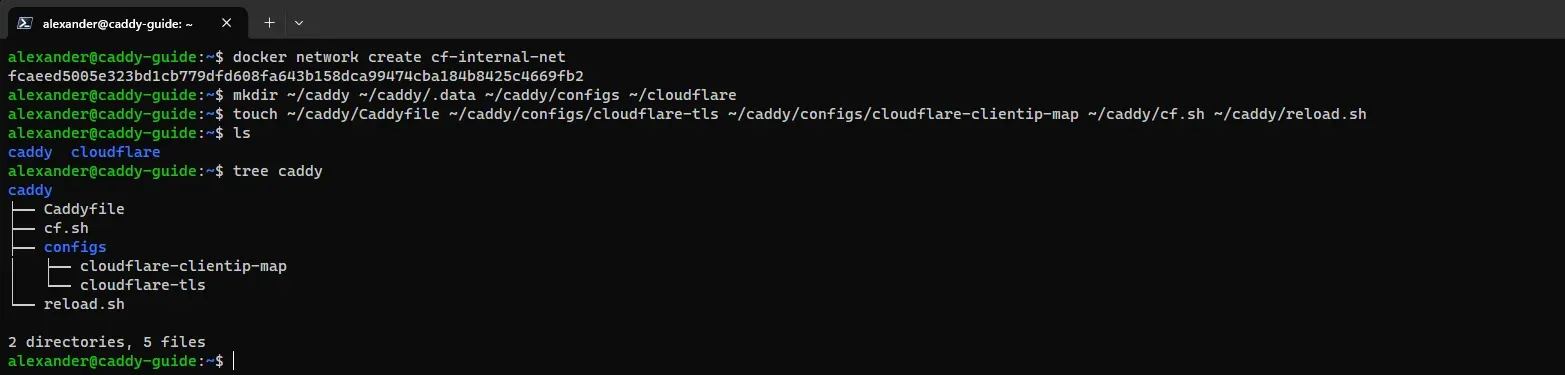 New Docker network and config directories
Change directory to the new Caddy directory we created above and edit the file called caddy.yml.
cd ~/caddy
nano caddy.yml
Next copy and paste the following into the new file.
version: '3'services: server: restart: always networks: - cf image: alexandzors/caddy env_file: .env ports: - 80:80 - 443:443 volumes: - ${PWD}/Caddyfile:/etc/caddy/Caddyfile:ro - ${PWD}/.data:/data - ${PWD}/configs:/etc/caddy/configs:ro
networks: cf: name: cf-internal-net external: trueHit CTRL + X then Y to save and close the file. This will be the compose file for deploying Caddy. Next do the same for both reload.sh and cf.sh
#!/bin/sh# This script runs caddy reload, caddy validate, caddy fmt, and caddy version inside the container via docker exec.# Usage:# -r caddy reload# -v caddy validate# -f caddy fmt# -V caddy version# Caddy docs: https://caddyserver.com/docs/command-line# Created by: https://github.com/alexandzors/caddy# Created for: https://blog.alexsguardian.net/guides/#caddycaddy_container_name="caddy-server-1"caddy_container_id=$(docker ps | grep $caddy_container_name | awk '{print $1;}')
while getopts ":r:v:f:V" option; do case $option in r) docker exec -w /etc/caddy $caddy_container_id caddy reload ;; v) docker exec -w /etc/caddy $caddy_container_id caddy validate --config /etc/caddy/Caddyfile ;; f) docker exec -w /etc/caddy $caddy_container_id caddy fmt --config /etc/caddy/Caddyfile ;; V) docker exec -w /etc/caddy $caddy_container_id caddy version ;; esacdone#!/usr/bin/env sh# This script queries cloudflare's website and pulls the list of IPv4 addresses. They are then loaded into a file to be used by Caddy.# These IPs can be used for setting up trusted proxy configurations in web servers.# Original file creator: https://caddy.community/t/trusted-proxies-with-cloudflare-my-solution/16124# Updated by https://github.com/calvinhenderson to be more "succinct" as he put it. :)
FILE_IPV4="./configs/cloudflare-proxies"tmp_file="/var/tmp/cloudflare-ips-v4-$(date +%Y%m%d_%H%M%S)"
# Make sure curl existscommand -v curl >/dev/null || { echo "Command 'curl' was not found. Is it in the PATH?"; exit 1; }
# Fetch the IP list from Cloudflarecurl -fso "$tmp_file" "https://www.cloudflare.com/ips-v4"[ $? -eq 0 ] || { echo "Failed to fetch IPv4 list."; exit 1; }
# Transform the downloaded list into a format Caddy can understandawk -v d=" " '{s=(NR==1?s:s d)$0}END{print "trusted_proxies "s}' "$tmp_file" > "$FILE_IPV4"
# Clean uprm -f "$tmp_file"After saving cf.sh edit your cron schedules and add the following schedule.
crontab -eAfter selecting your editor for cron, add the following to the bottom of the schedules list. Make sure to update the path to the location of cf.sh.
@hourly bash /path/to/caddy/cf.shThen mark both scripts as executable.
chmod +x ./cf.shchmod +x ./reload.shNow run the cf.sh script to generate the cloudflare-proxies file in /configs/.
bash cf.shIf successful you should be able to cat the file and get a list of IPs that match the ones listed here under the IPv4 section.
alexander@caddy-guide:~/caddy$ bash cf.shalexander@caddy-guide:~/caddy$ cat ./configs/cloudflare-proxiestrusted_proxies 173.245.48.0/20 103.21.244.0/22 103.22.200.0/22 103.31.4.0/22 141.101.64.0/18 108.162.192.0/18 190.93.240.0/20 188.114.96.0/20 197.234.240.0/22 198.41.128.0/17 162.158.0.0/15 104.16.0.0/13 104.24.0.0/14 172.64.0.0/13 131.0.72.0/22Change directory into /caddy/configs and edit the following files with the provided information.
header_up X-Real-IP {http.request.header.CF-Connecting-IP}header_up X-Forwarded-For {http.request.header.CF-Connecting-IP}tls { dns cloudflare {env.CLOUDFLARETOKEN}}Obtaining a Cloudflare API Token
Next we need to generate an API token for Caddy to use for domain verification. The DNS Challenge utilizes a TXT record that is created by Caddy that Let’s Encrypt can then verify against. To generate this token head back to your Cloudflare Dashboard and click on the profile dropdown on the top right of the page, click “My Profile” then “API Tokens” from the left-hand menu.
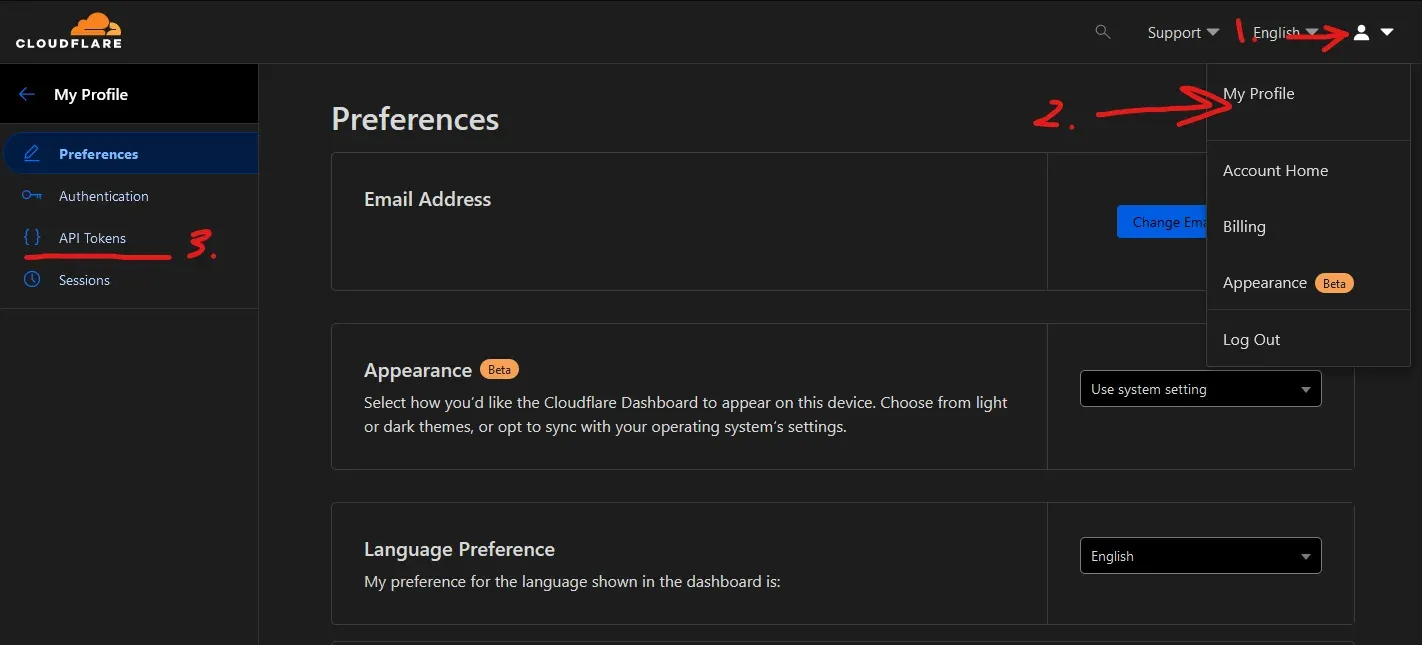 Navigating to the API Tokens page in Cloudflare
Click on the “Create Token” button in the API Tokens section. Then click on the “Use template” button for the “Edit zone DNS” option.
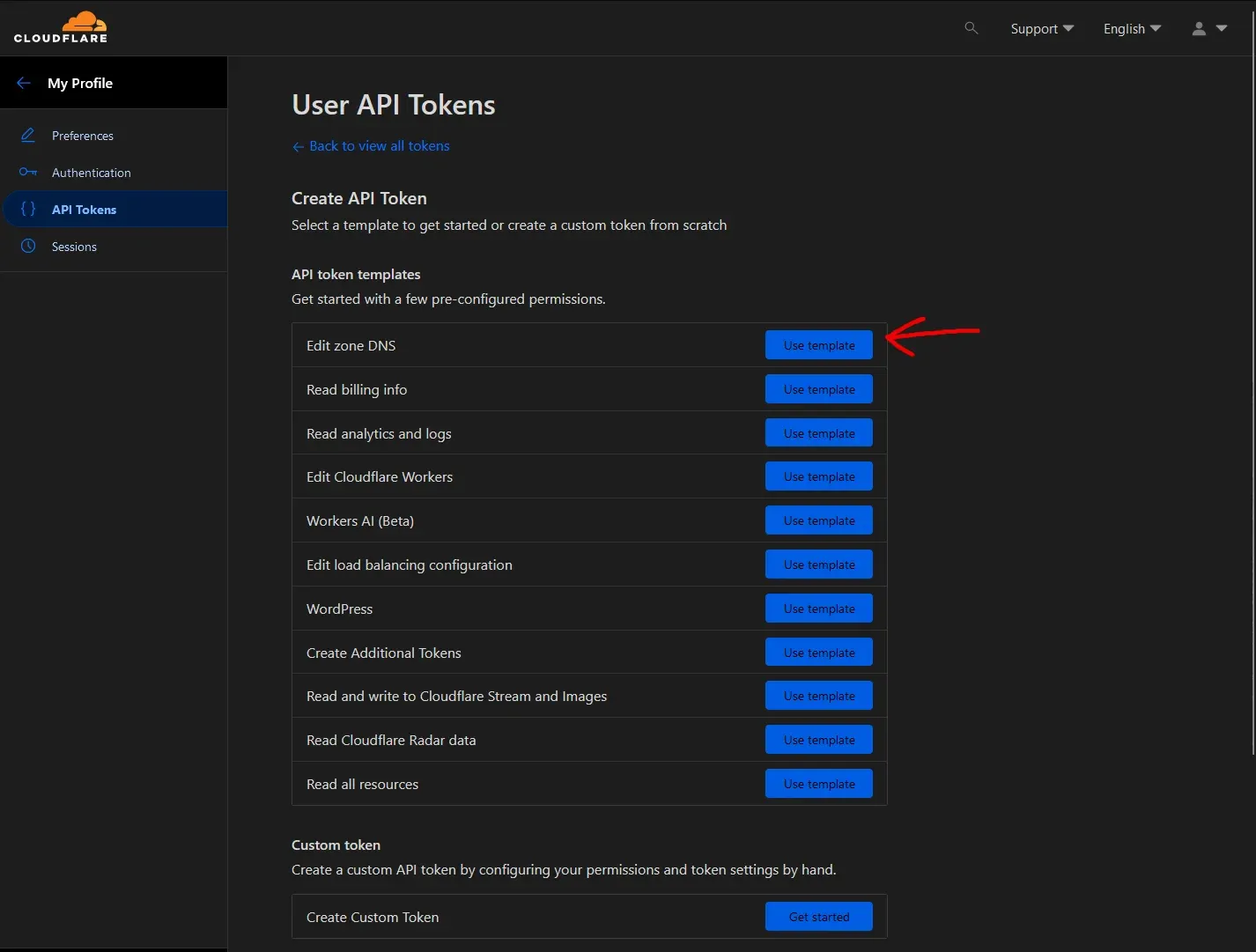 Cloudflare API template page
Give your token a recognizable name. Then in the Permissions section set the following options:
| Dropdown 1 | Dropdown 2 | Dropdown 3 |
|---|---|---|
| Zone | DNS | Read |
| Zone | DNS | Edit |
In the Zone Resources section:
| Dropdown 1 | Dropdown 2 | Dropdown 3 |
|---|---|---|
| Include | Specific Zone | universelab.net |
Your page should look similar to the image below.
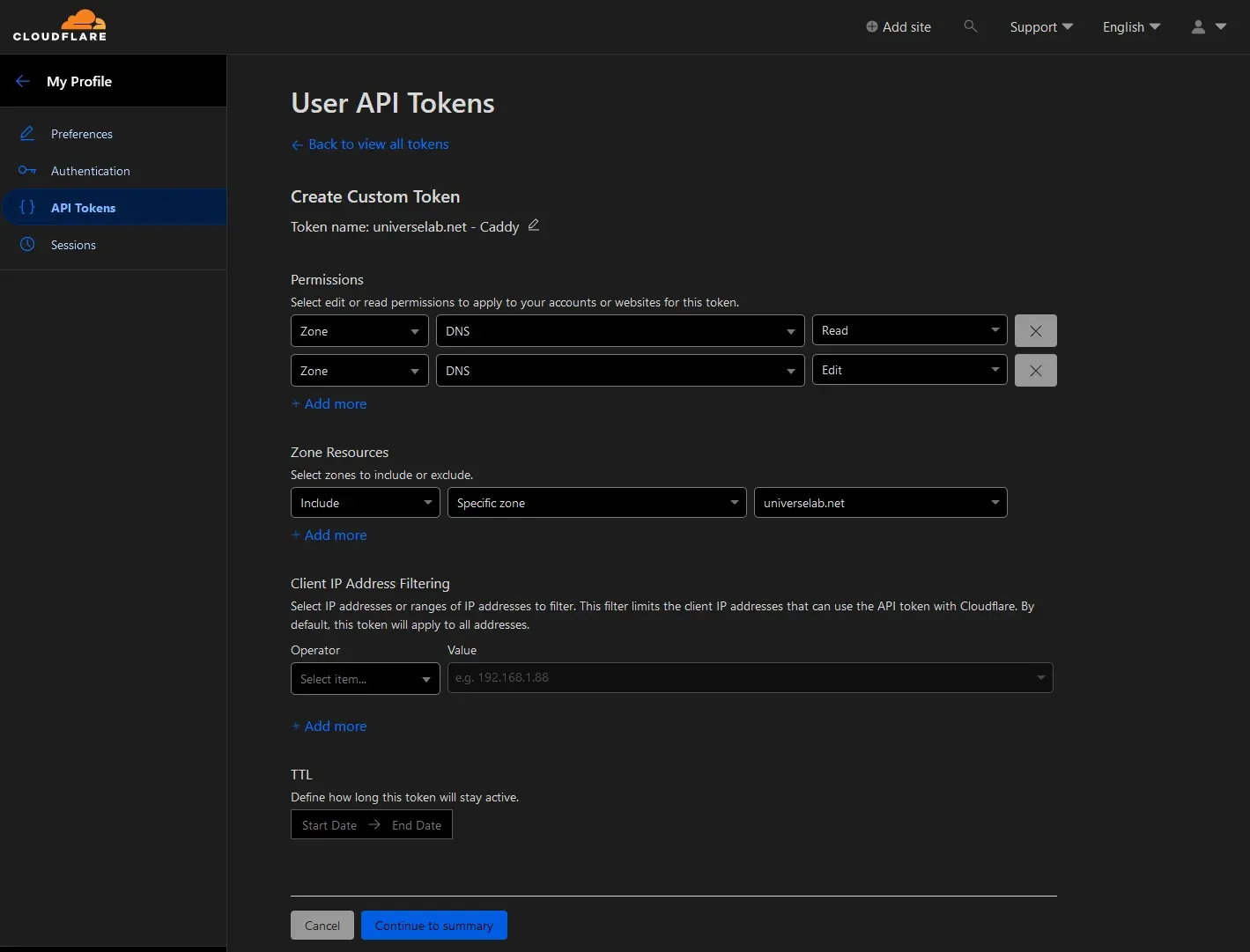 Cloudflare API Token Setup
Then click “Continue to summary”. Here you can verify your configuration for the token. Click “Create Token” to finish generating your API token. Copy it to a safe location as we will need it later.
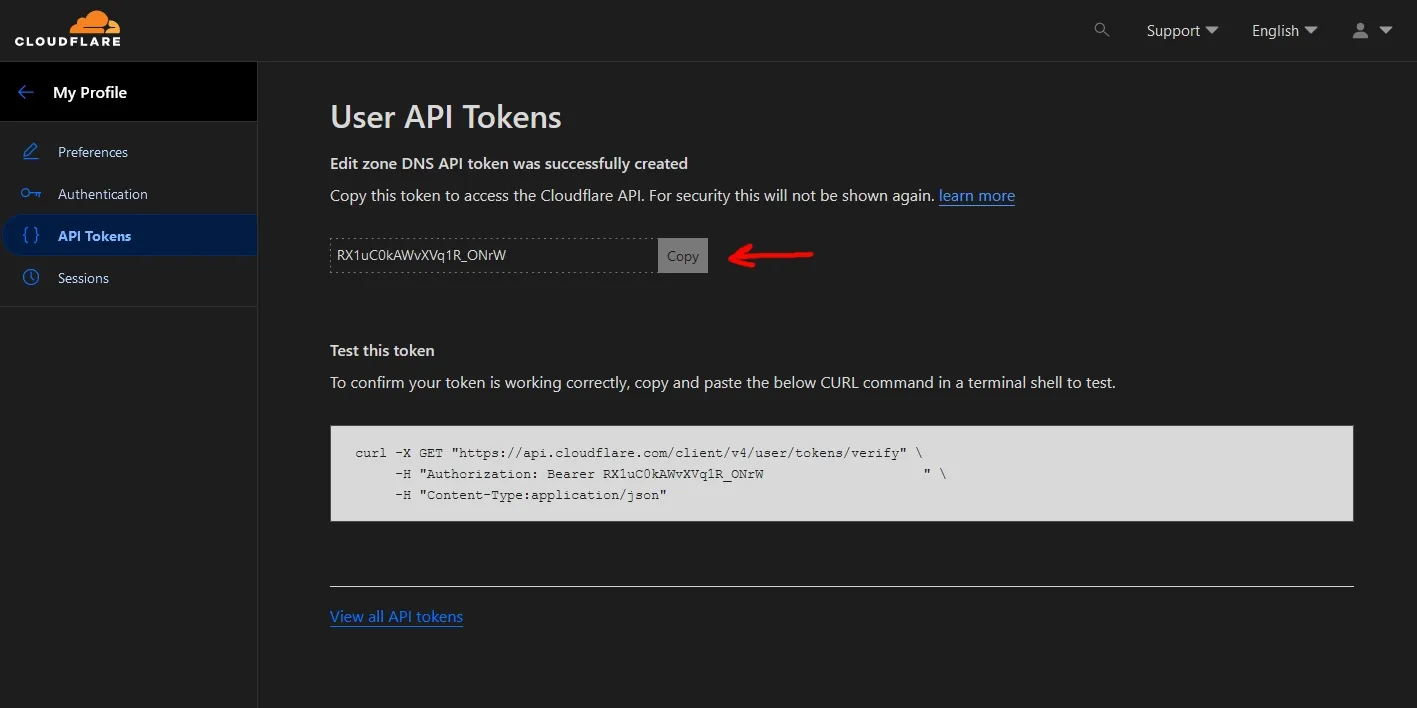 Cloudflare API Token
With the token in hand, jump back over to the host and in the /caddy directory create a new file called .env.
nano ~/caddy/.envAdd the following to the file.
CLOUDFLARETOKEN=RX1uC0kAWvXVq1R_ONrWxxxxxxxxxxxxxxxxxxxxxxxxxMake sure to replace RX1uC0kAWvXVq1R_ONrWxxxxxxxxxxxxxxxxxxxxxxxxx with the token you generated above. Save and close the file with CTRL + x then y.
Preparing for Cloudflare Tunnel
With Caddy’s config prepped and ready to deploy we focus on prepping for Cloudflare Tunnel. This one will be easy as most of the config is done via Cloudflare’s Zero Trust dashboard. Though, we will still need a directory to house our docker compose config, and an env file for the tunnel on the host. Create a new directory called Cloudflare as well as the docker compose config file and the .env file.
mkdir ~/cloudflaretouch ~/cloudflare/cloudflare.yml ~/cloudflare/.envNext edit the cloudflare.yml file and copy the following into it.
cd ~/cloudflarenano cloudflare.ymlversion: '3'services: tunnel: restart: always networks: - cf image: cloudflare/cloudflared:latest command: 'tunnel -no-autoupdate run --token ${TOKEN}' env_file: .env
networks: cf: name: cf-internal-net external: trueSave and close the file with CTRL + x then y. We will come back to the .env file later.
Configuring and Deploying Cloudflare Tunnel
Now that we have the host prepared and Cloudflare configured, we can start setting up the tunnel. To get the tunnel up we need to navigate to the Zero Trust Dashboard in Cloudflare. Jump back to the main Cloudflare dashboard and then click on “Zero Trust” in the menu on the left.
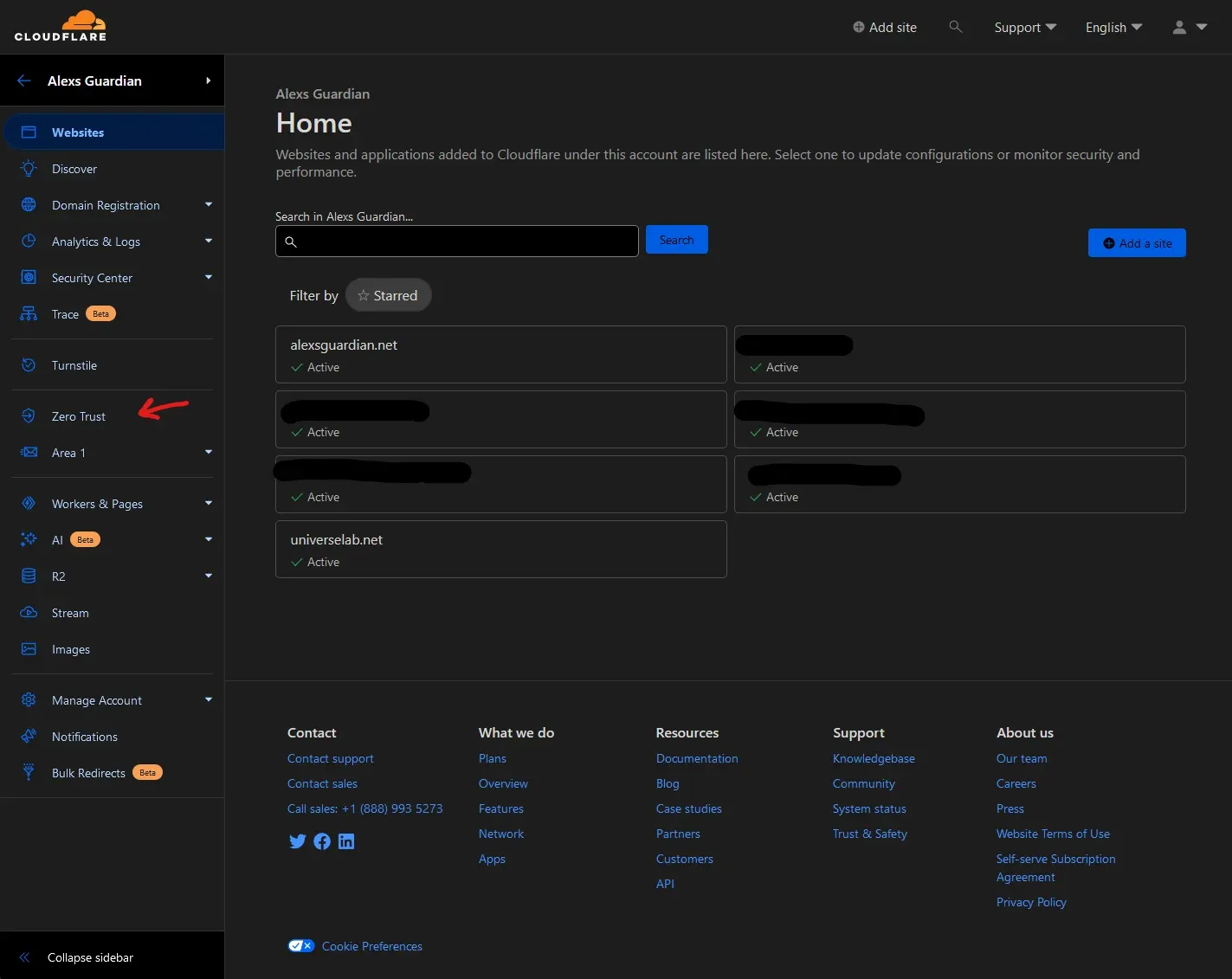 Cloudflare Zero Trust menu option
Once on the Zero Trust dashboard, select the Access > Tunnels option.
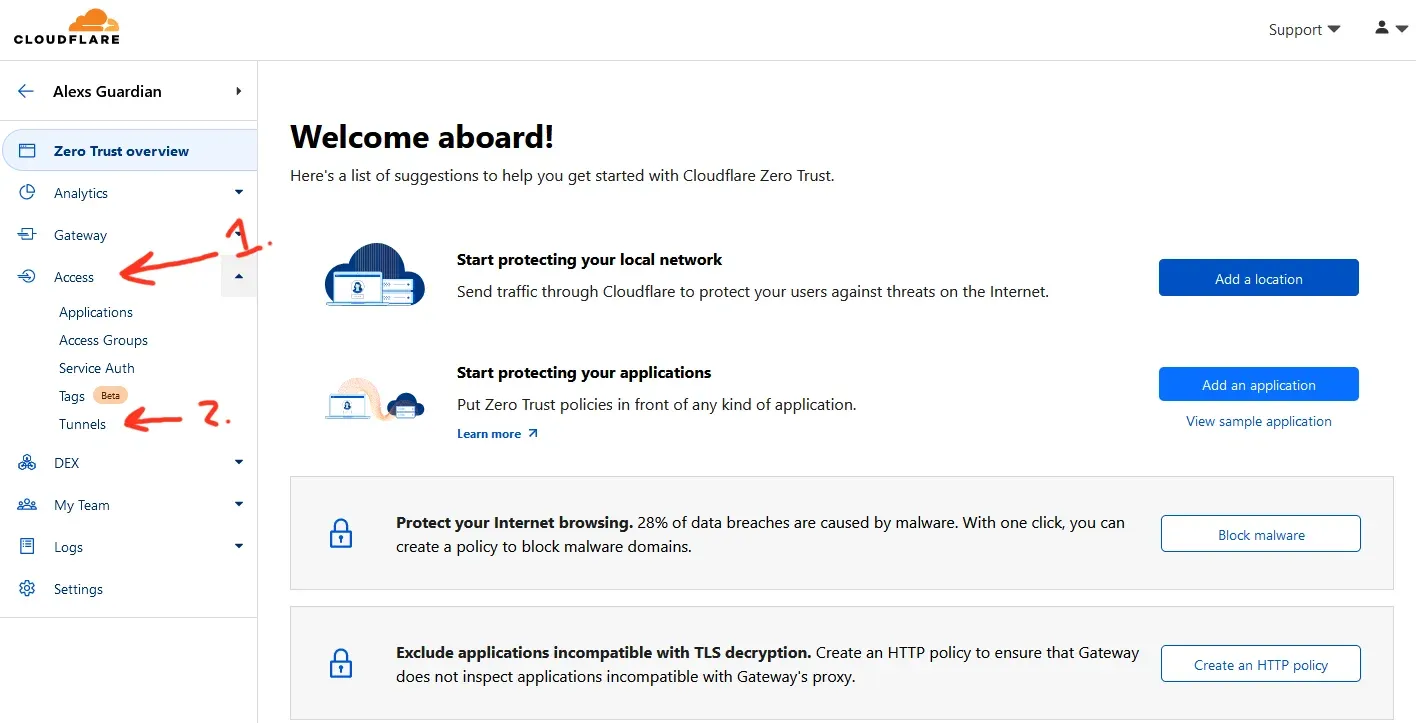 Cloudflare Tunnels menu option
Now click on the ”+ Create a tunnel” button on the Tunnels overview page.
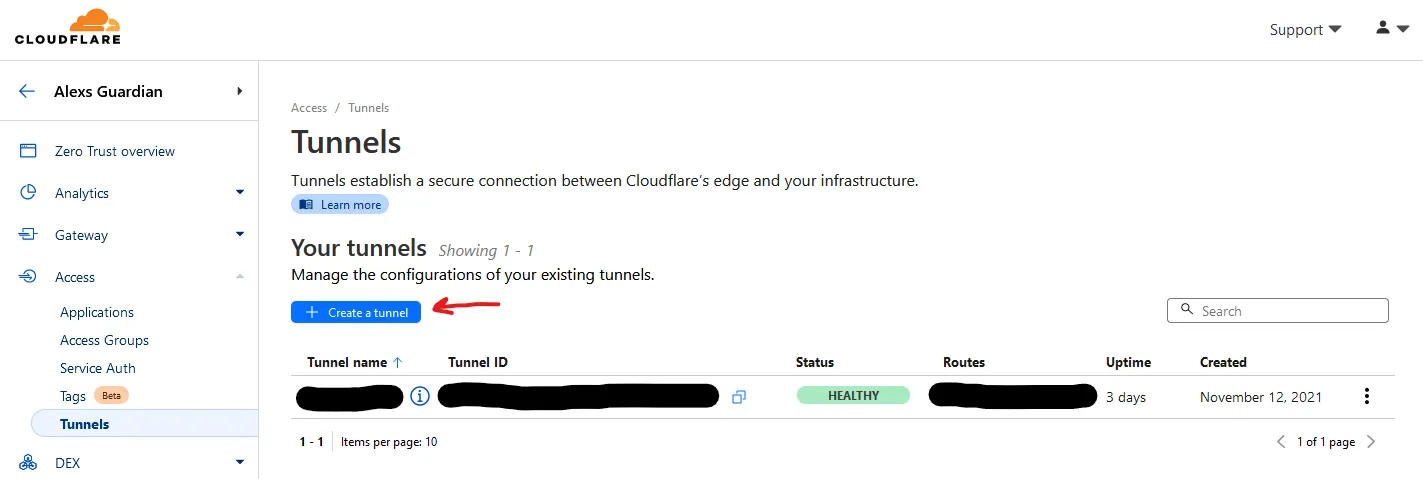 Cloudflare Tunnels Overview
Follow the wizard to create the tunnel. Give it a name and copy the Docker run command on the next page.
 First Part of the Tunnel Creation Wizard
Take the command and paste it into notepad. Delete everything but the token and then copy the token.
 Editing the Docker Run Command for the Tunnel
Now return to your host and edit the .env file in the /cloudflare directory. Copy the following into the file. Replace my demo token with the one you copied earlier.
TOKEN=eyJhIjoiZDNkZGU5NDhlZDEzMWZlMTM0NzRlODVkNWI3OGYwOTEiLCJ0IjoiMTVlZGY1ZTUtNDE1YS00YWFmLTg0NzQtN2VkNDhiNTU2OThjIiwicyI6Ik1qTmtNek0wTkRBdFpHSTROaTAwT1RrMUxXRTBaREV0WmpVek1Ea3pNakEzTm1aaSJ9Save and close the file. Your /cloudflare directory should look like the following image after you are done.
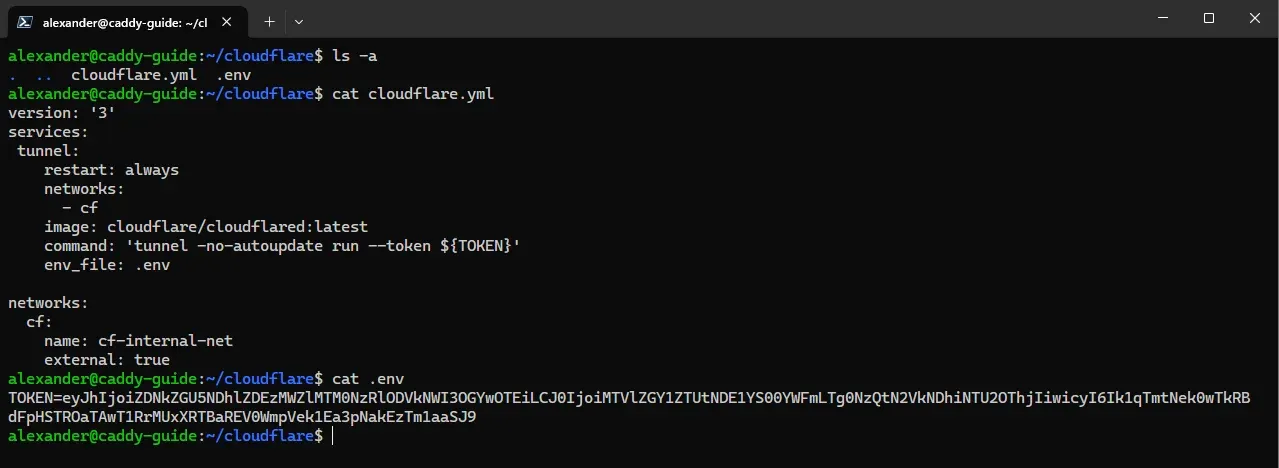 Example Cloudflare Tunnel Config
In the /cloudflare directory run docker compose -f cloudflare.yml up. If you watch the Tunnel Wizard you can see the local tunnel connect to Cloudflare in the lower box labeled “Connectors.”
 Local Tunnel Connecting to Cloudflare
Once the tunnel is connected. Hit CTRL + C to terminate the Cloudflare container. Then re-run docker compose -f cloudflare.yml up -d. The -d argument runs the container in ‘detach mode’ so that it can run in the background. By running docker ps you can verify if it is up and running.
alexander@caddy-guide:~/cloudflare$ docker psCONTAINER ID IMAGE COMMAND CREATED STATUS PORTS NAMESe9e03f600a69 cloudflare/cloudflared:latest "cloudflared --no-au…" 9 minutes ago Up 2 seconds cloudflare-tunnel-1Return to the Zero Trust dashboard and continue to the “Route tunnel” step in the Tunnel wizard. Under the “Public Hostnames” tab select your domain in the “Domain” drop-down. Then select HTTPS for the service “Type” and enter caddy-server-1:443 for the service “URL.”
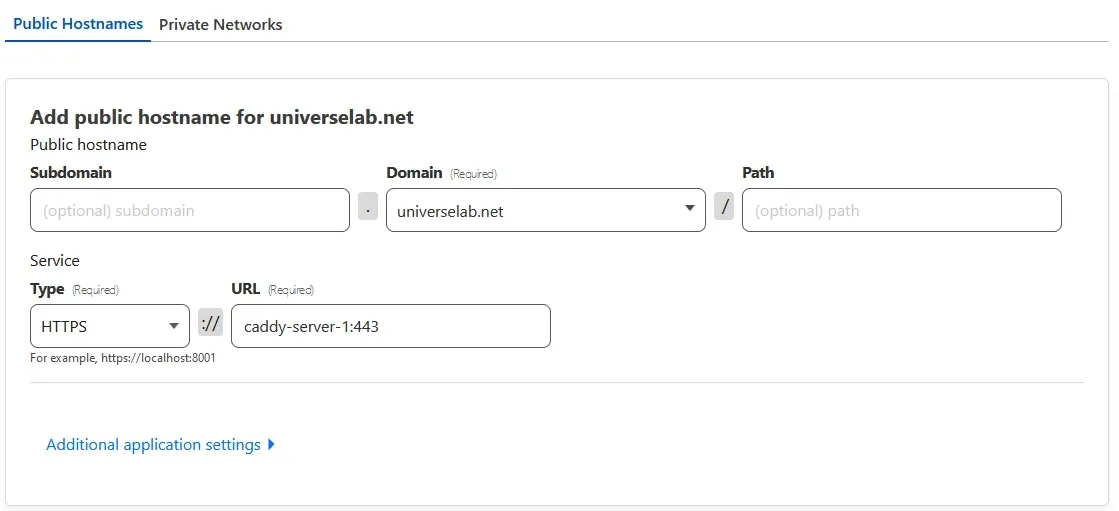 Route tunnel example
Under the “Additional application settings”, select TLS and then input your domain name into the “Origin Server Name” field.
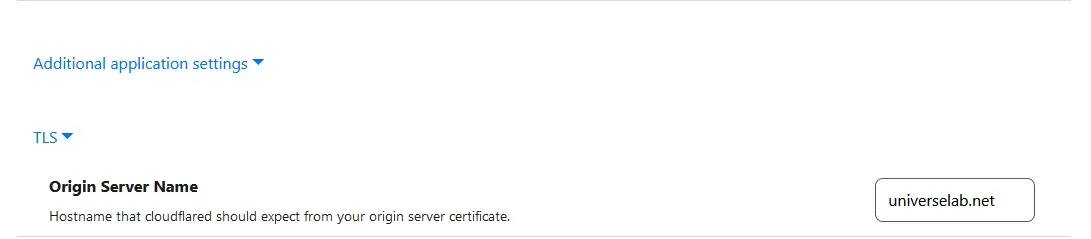 Tunnel SNI config
You can then save the tunnel configuration. We can come back later to add more routes, once we get everything set up and working with the root domain.
 Online and Connected Tunnel
If you return to the main dashboard, select your domain and go to DNS > Records. You can see the entry added for the root domain pointing to the tunnel.
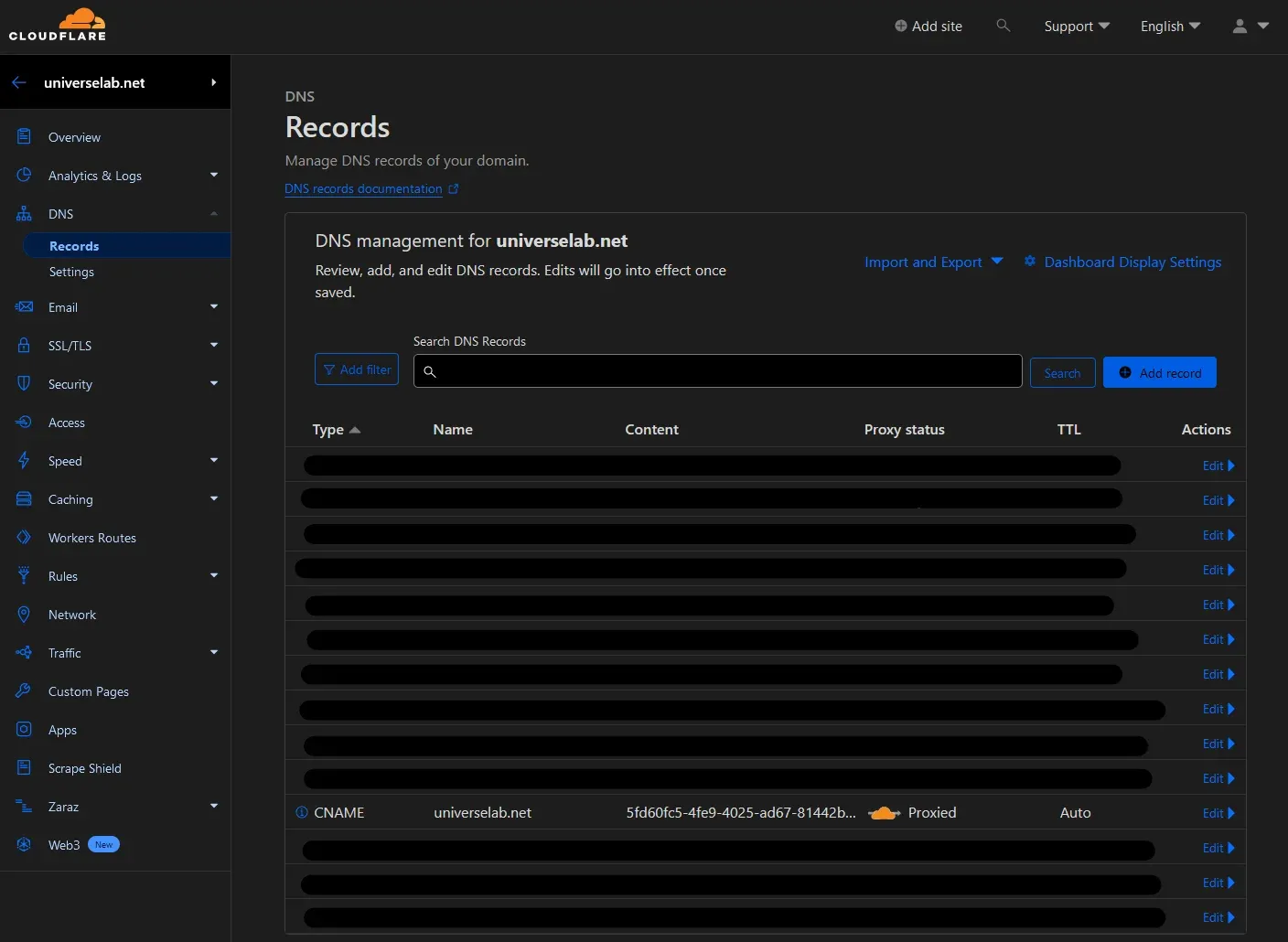 Tunnel entry in DNS records
Basic Troubleshooting FAQ
Q: I got an origin error page from Cloudflare. Code 502: Bad Gateway