· Alexander · Homelab · 3 min read
Got A Ubiquiti UDM-P With Broken mDNS?
If you have a Ubiquiti UDM-P and are having issues with mDNS, this post will help you fix it.

If you answered yes to the question in the title, you are probably experiencing the inability to cast media properly to devices located on a IoT VLAN. Well you’re in luck! An awesome member of the Ubiquiti community created a docker container for the multicast-relay service that can be deployed on the UDM-P.
Setting up the container is rather easy. However you need to setup SSH access to your UDM-P. Click here to see Ubiquiti’s docs on enabling SSH on your device.
Deploying the Container
Once you have SSH enabled log into your UDM-P via a SSH enabled console. I use the Windows Terminal app with PowerShell 7 and the Windows OpenSSH client.
ssh root@ur.udm.ip.hereOnce you accept the connection you will get access to the UDM-P’s CLI. From here we can run the following command to get the info we need for the container.
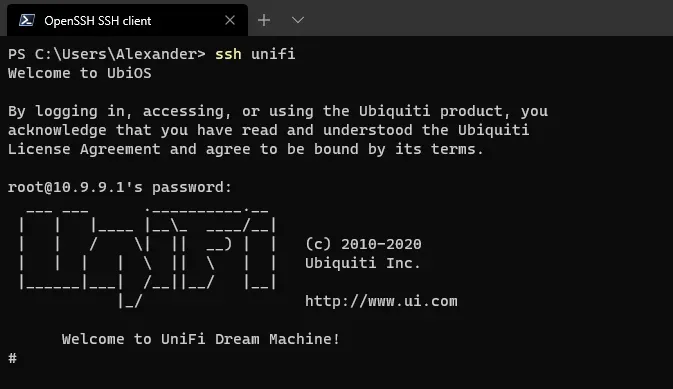 UDM-P SSH Session welcome screen
ifconfigThis command will return all of your network interfaces.
You will want to make note of the two bridge interfaces of the networks you want mDNS to route between via the container. For me it’s br0 and br2.
Once we have the interfaces, we can deploy the container. Since the UDM-P uses Podman rather than Docker, we need to change up the command a bit to make it work. See here for Docker vs Podman.
podman run -rm -it --network=host -e INTERFACES="br0 br2" --restart=always --name ssdp-relay scyto/multicast-relayOnce the command is executed, an ID is returned for the container verifying that it was deployed. To actually verify it is running, we can run:
podman ps fervent_grothendieck is the mDNS relay container.
To see the container logs we can run:
podman logs -f container_nameIf the container is properly running you will see messages in the log that look similar to this image:
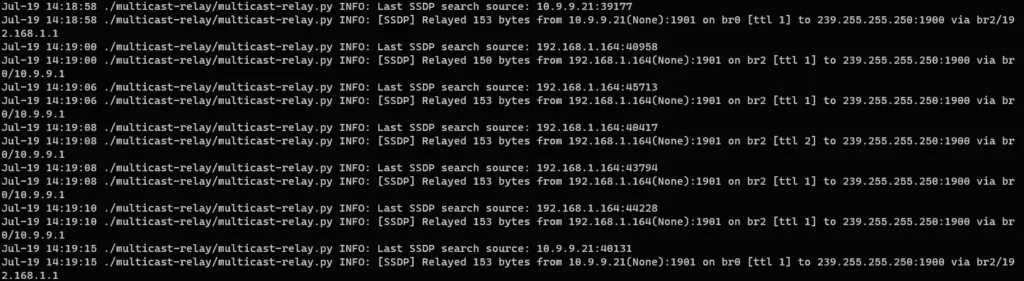
To exit the log, hit CTRL+C.
Now that the mDNS relay service is running, try and connect to your device from your main LAN. You should now be able to see your devices. Just note that if your router’s firewall is blocking established/related connections between your main LAN and IoT VLAN you won’t be able to connect.